Grandstream UCM
MyVoipCRM Grandstream UCM integration: click-to-call, caller pop-up, recordings, queues and breaks, listen-whisper, PBX management and web phone.
The MyVoipCRM Grandstream UCM integration connects the UCM PBX in your office or in the cloud to your CRM. Calls, incoming call pop-ups, call records and PBX management sit next to the customer record — no extra software or server in your office. This page covers the features and a step-by-step setup with screenshots.
What you can do
Calling
- Click-to-call: One-click calls from customer, lead, task and support ticket screens. With the CRM web phone the call is answered automatically and the customer is dialled straight away; for staff on a desk phone or Wave, the extension rings first and the customer is dialled when it is answered
- Outbound number selection: Choose which number a call goes out with; each extension's default outbound number can be changed from the CRM
- Extension-to-extension calls and DID numbers pulled from the PBX
Incoming calls and live calls
- Caller pop-up: The caller's record opens when your extension starts ringing (or, if you prefer, when you answer); unknown callers get a new contact form. In queues and ring groups every ringing extension gets its own pop-up
- Call control: Hold / resume, transfer and hang up — from the CRM
- Web phone (WebRTC): Make and answer calls in the browser, no separate softphone
Supervisors and call centers
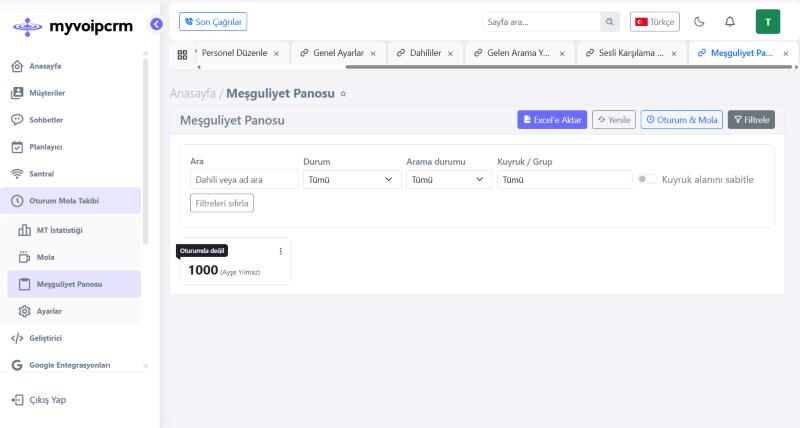
- Busy board: Who is available, talking, ringing or on a break — live
- Listen / whisper / barge: Supervisors can listen to a call from the board, whisper to the agent only, or join the call
- Sessions and breaks: When an agent goes on a break in the CRM they are paused in their UCM queues, and start receiving calls again when they return
- Queues: Calls waiting in queue, queue members and their order; add / delete queues from the CRM
Call records and reports
- Call history: Incoming, outgoing, internal and missed calls with duration, direction, dialled number, answering agent, queue and time waited in queue — linked to the contact
- Call recordings: Calls recorded by the UCM can be played from the call history
- Missed call tickets and reports work the same way regardless of the PBX
- Gap filling: Even if the connection drops for a while, missing call records are fetched from the PBX at regular intervals
PBX management — from the CRM
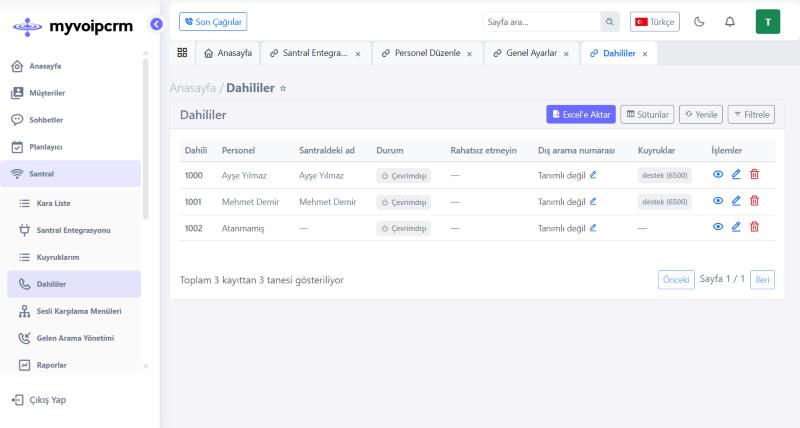
- Extensions: List, status, edit (name, SIP password, web phone, voicemail, automatic recording) and delete
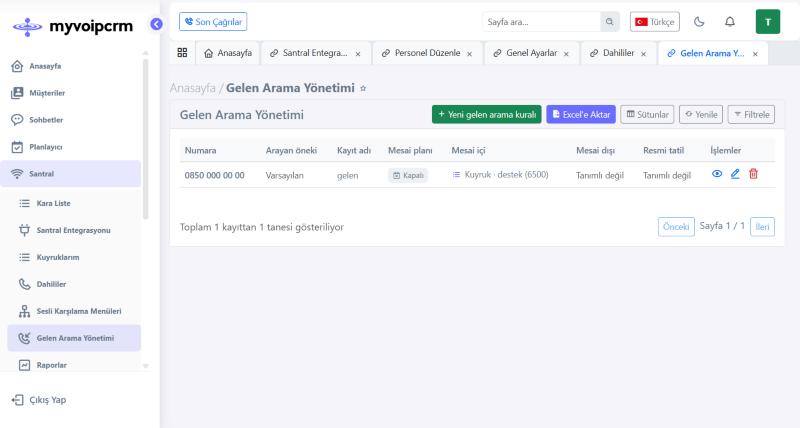
- Inbound routing: Route a number's calls to an extension, queue, ring group, IVR or voicemail — add, edit, delete
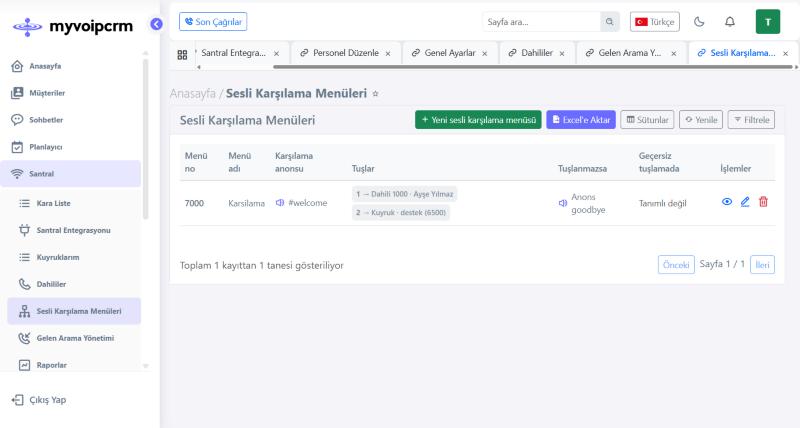
- IVR menus: Key targets, welcome prompt, timeout and invalid input targets — add, edit, delete
- Blacklist: Numbers added in the CRM are written to the UCM's inbound blacklist
How it works
Nothing to install in your office
MyVoipCRM works directly from our cloud servers through the UCM's own HTTPS API and an encrypted live event connection. No connector program or server to run and update in your office — you only open one UCM port to our servers.
Certificate pinning
If the UCM uses its factory certificate, the connection test shows your PBX's certificate fingerprint; the fingerprint you confirm is saved and the connection is only made to that PBX. A fake server in between cannot take over the connection.
Signed event address
The address the UCM sends call records to carries a signed key unique to your company; nobody without it can write call records into your CRM. A record received twice is processed once.
One row per call
The UCM reports a call in several parts, sent at intervals over the internet (number greeting, queue, each ring attempt, voicemail). MyVoipCRM merges them: every call is a single row in the call history, with the answering agent, queue wait and talk time shown correctly.
PBX-independent telephony
MyVoipCRM's calling screens do not change with the PBX. Select Grandstream UCM on the PBX Integration page; call history, reports and automations work the same way. Buttons for features the PBX does not offer are hidden automatically.
Before you start: requirements
- A Grandstream UCM (UCM6300/6500 series, UCM62xx or SoftwareUCM) and admin access to it
- A static IP or domain name through which the UCM can be reached from the internet (the UCM's DDNS feature if you have no static IP)
- Permission to set up port forwarding on your router or firewall
- The PBX module in MyVoipCRM; the Calling module for calls from the CRM and the Session / Break module for break tracking
If port forwarding is not possible (carrier-grade NAT / CGNAT, 4G-mobile internet, an unmanaged router), MyVoipCRM cannot reach your UCM. Ask your provider for a static IP or contact our support team.
Setup guide
Step 1 — Network
- On your router or firewall, forward TCP port 8089 (the UCM's HTTPS port) from the internet to the UCM's local IP.
- Open this port only to MyVoipCRM server IPs; get the IP list from our support team. Do not open 8089 to the whole internet: the same port also exposes the UCM's admin panel.
- If the web phone will be used, the networks your staff are on also need access to 8089 (inside the office the local network is enough).
- For a cloud-hosted UCM, allowing 8089 in the security group is enough.
Step 2 — UCM panel
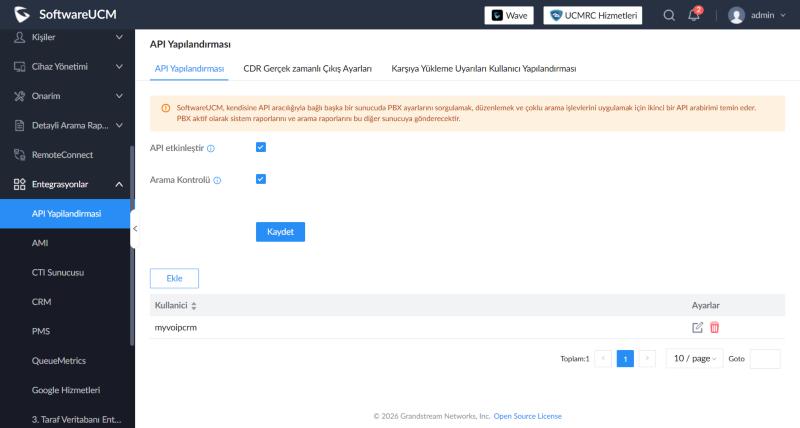
2.1 Sign in to the UCM as admin and open Integrations → API Configuration. Tick «Enable API» and «Call Control», click Save, then use «Add» to create a separate API user for MyVoipCRM.
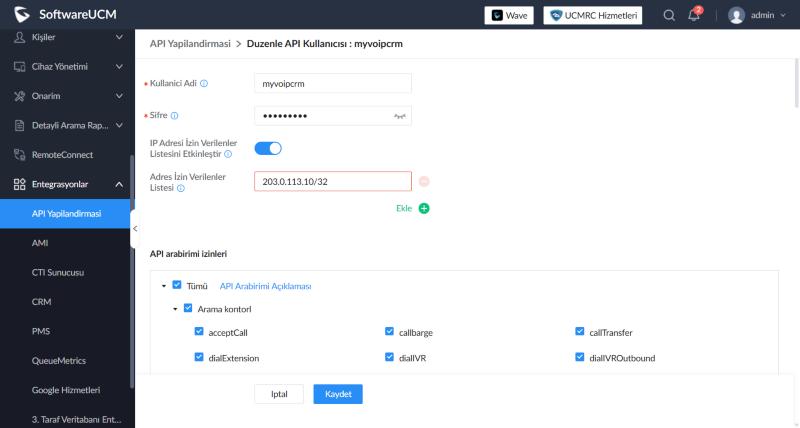
2.2 Give the API user a strong password (do not use the UCM admin account). Turn on «Enable IP Address Whitelist» and enter the MyVoipCRM server IPs as IP/32.
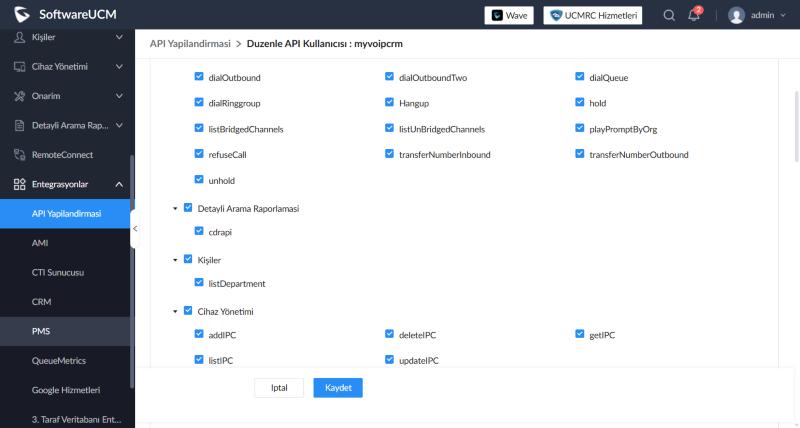
2.3 In the API interface permissions list on the same screen, the easiest is to tick «All». To grant selectively: call control (dialExtension, dialOutbound, dialOutboundTwo, Hangup, callTransfer, hold, unhold, callbarge, listBridgedChannels, listUnBridgedChannels), extensions (listAccount, getSIPAccount), queues (listQueue, getQueue, updateQueue, getQueueCalling, pauseUnpauseQueueAgent), blacklist, cdrapi and recapi. Save and click «Apply Changes» at the top right.
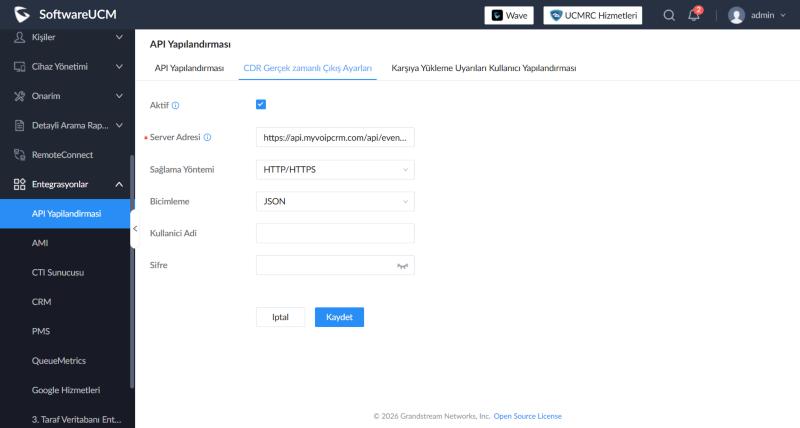
2.4 On the CDR Real-time Output Settings tab: Enable ticked; Server Address = the full event address shown on MyVoipCRM's PBX Integration page (Step 3.1); Delivery Method HTTP/HTTPS; Format JSON; Username and Password empty (the address carries its own signature). Save and click «Apply Changes».
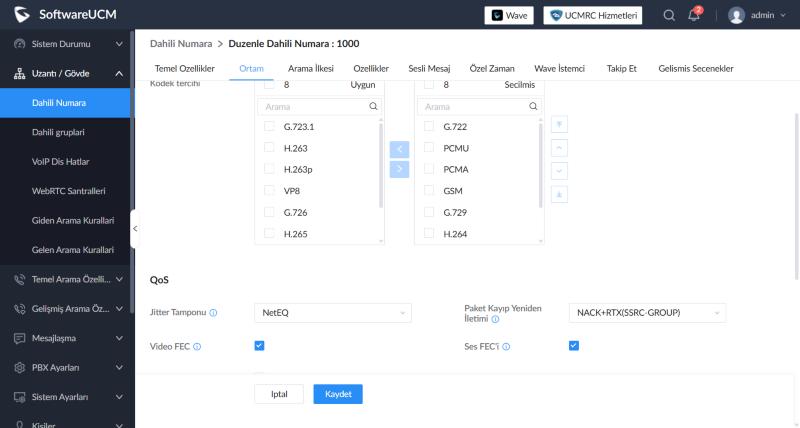
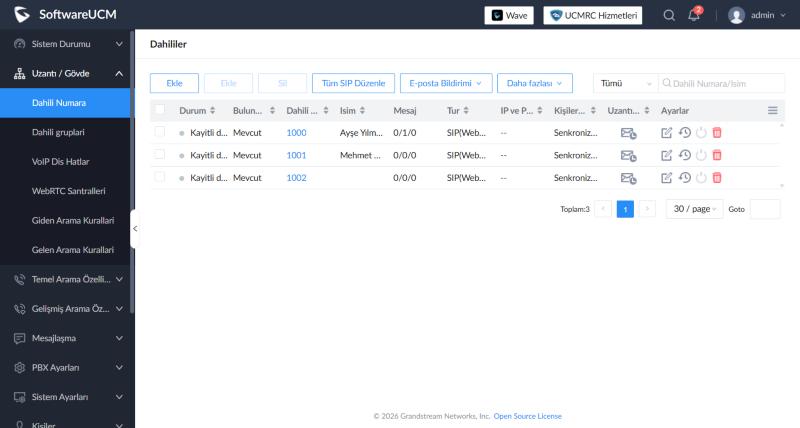
2.5 (for the web phone) Under Extension / Trunk → Extensions, edit the agent's extension: enable WebRTC support and, on the Media tab, remove G.726 from the selected codecs (keep Opus, G.722, PCMU, PCMA). Chrome, Edge and Brave cannot read an offer that contains G.726; the call drops to voicemail when answered.
Step 3 — MyVoipCRM
3.1 Open PBX → PBX Integration and select Grandstream UCM. The Call event address on the right is the address to paste into the UCM's CDR output (Step 2.4); below it is a setup guide with the same steps.
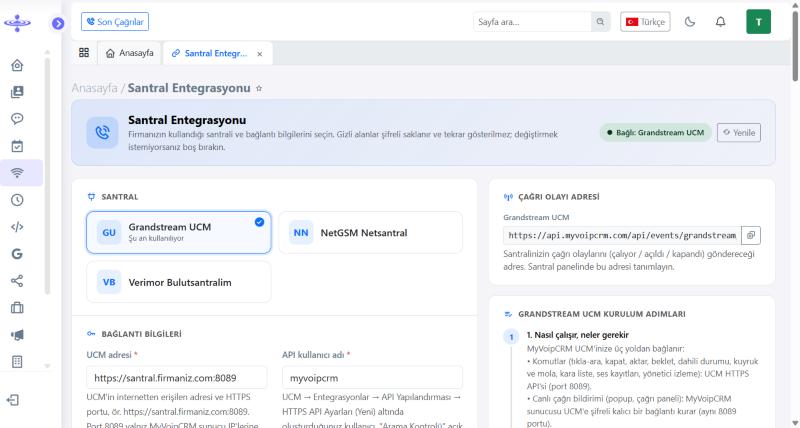
3.2 Enter the UCM address (https://your-domain-or-ip:8089), the API username and password. If staff reach the UCM through a different address (for example a local IP inside the office), fill in the Web phone WSS address with it: wss://local-ip:8089/ws.
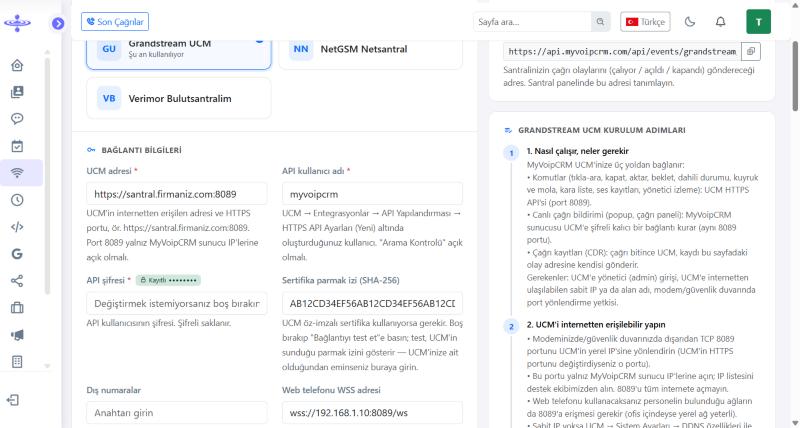
3.3 Click Test Connection. If the UCM runs with its factory (self-signed) certificate, the test shows the fingerprint the UCM presents; if it belongs to your UCM (compare it with the certificate under UCM → System Settings → HTTP Server), paste it into the «Certificate fingerprint» field and test again. A successful test shows the UCM version and the number of extensions and queues; click Save.
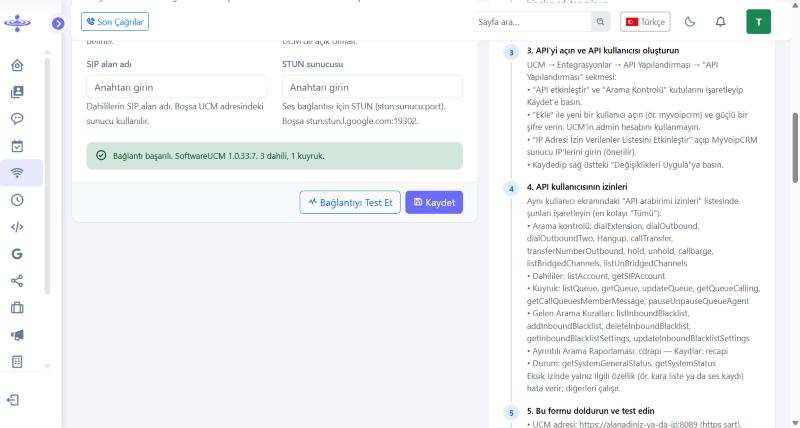
3.4 On the Users page, enter each staff member's UCM extension number; the caller pop-up matches the ringing extension to the staff member by this number. For web phone users choose call method «Web phone» and client «MyVoipCRM Web Phone». No SIP password is entered — MyVoipCRM fetches the extension's password from the UCM. For desk phone or Wave users the extension number is enough.
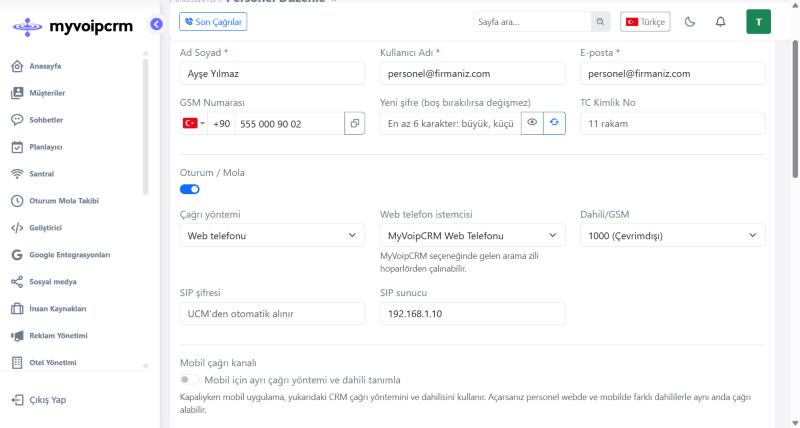
3.5 Under General Settings → Popup setting, choose when the customer record opens: While ringing (when the extension starts ringing; every ringing agent in a queue) or On answer (only the agent who picks up).
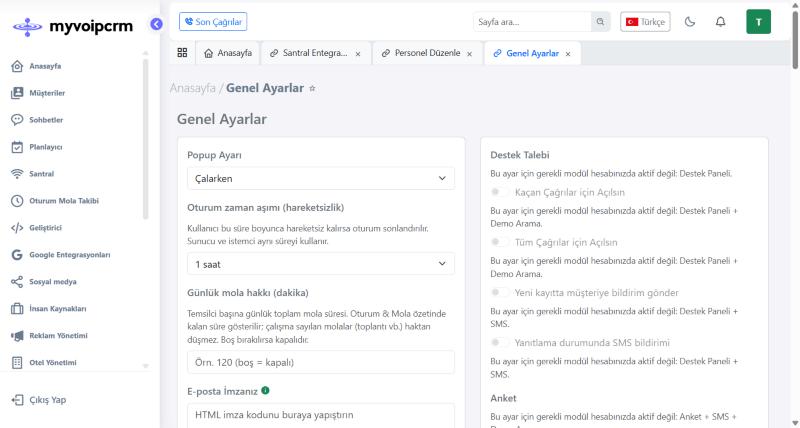
3.6 (for the web phone) If the UCM uses a self-signed certificate, each staff member must open https://ucm-address:8089 once in their browser and accept the certificate; otherwise the web phone stays «not connected». The permanent fix is a domain name and a valid certificate (e.g. Let's Encrypt) on the UCM.
Step 4 — Using it
When your extension rings, the caller's record opens; Hold, Transfer and Hang up are at the top of the record during the call.
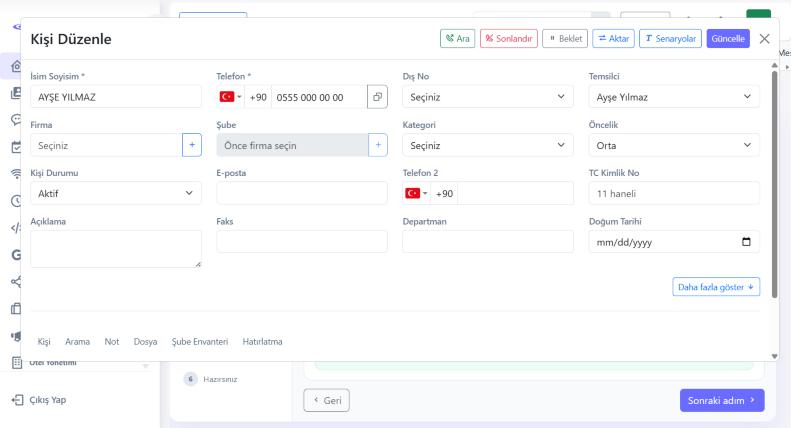
Supervisors see every agent's live status on the Busy Board and can listen to, whisper to or join an agent's call.
From the PBX menu you can manage extensions, inbound routes, IVR menus and queues without opening the UCM panel; changes are applied to the PBX within seconds.
Limitations
- Creating new extensions is not available in the UCM HTTPS API; add the extension in the UCM panel, then edit or delete it from the CRM
- Muting a call is not available in the UCM API; use the phone's own mute button
- Prompts and sound files are uploaded in the UCM panel
- Live call notifications require MyVoipCRM to reach the UCM over the internet; if the connection drops, call records still arrive and pop-ups resume when it is back
Who is it for?
- Companies with their own Grandstream UCM who want to connect it to their CRM
- Sales and support teams who want pop-ups, call history and click-to-call without changing their PBX
- Call centers that need queues, breaks and live monitoring
- Teams who prefer to talk in the browser instead of on a desk phone
FAQ
Do we need to install anything in our office?
No. MyVoipCRM connects directly to the UCM's API; you only open the UCM's HTTPS port to our server IPs.
Does the pop-up also work for staff on a desk phone or Wave?
Yes. The pop-up follows the extension number, not the device; the CRM only needs to be open in a browser. With click-to-call the desk phone rings first and the customer is dialled when it is answered.
The pop-up does not open on incoming calls
Check the extension number on the staff record, General Settings → Popup setting, and that the UCM port is open to our server IPs. If an inbound route plays a prompt or IVR first, the pop-up opens when the extension starts ringing. If the agent is already on another call, the second call's pop-up is not opened.
Call history stays empty
Check that CDR Real-time Output is enabled in the UCM, the Server Address contains the full event address from the CRM, Username / Password are empty, and «Apply Changes» was clicked.
The web phone stays «not connected»
Open https://ucm-address:8089 in the browser, accept the certificate and reload the CRM page. If staff reach the UCM through a different address inside the office, fill in «Web phone WSS address» on the PBX Integration page with it (wss://…:8089/ws).
On the web phone, answered calls drop to voicemail
The extension's codec list contains G.726; Chrome, Edge and Brave cannot read a call offer with this codec. Remove G.726 from the extension's codec list in the UCM and reload the CRM page.
The connection test says «wrong account or password» or «login paused»
Enter the API user you created under API Configuration, not the UCM admin account. After failed attempts MyVoipCRM pauses logins for a while so your UCM account is not locked; correct the details and click «Test Connection».
Which modules are needed?
The PBX module for the integration, the Calling module for calls from the CRM and the Session / Break module for break and busy board tracking.